 DREHSTAND
By filmmakers, for filmmakers
Your film work.
All in view.
A personal calendar for your productions, call sheets for each shoot, conversations with your team and working hours for your records. DREHSTAND brings your life on set together on iPhone, iPad and Mac.
Free app · Calendar · Call sheets · Timesheets · Work overview
One working life. Plenty of possibilities.
A regular team. Or many different sets.
Studio on Monday, a location shoot with another production on Thursday: DREHSTAND brings your assignments together, so you can see your working week without piecing it together from messages. Your production assigns you; you see when, where and in which role you are expected.
Your personal calendar, shared call sheets and your own work records, all in one place. For crew and production. Free.
For crew
Read the call sheet. Follow the shoot.
View your call sheet, follow the current scene and see whether the shoot is ahead of or behind schedule. Your personal calendar shows assignments, locations and call times. Fill in timesheets, stay in touch through chats and review hours and private weekly fees under Activities.
Receive assignment requests within your productions, accept or decline, and receive the production's explicit confirmation of your booking.
For production
Track the shoot. Request crew.
Keep schedule progress in view: authorised admins start the shoot, select the current scene and record scene end times. They provide call sheets, send assignment requests, plan the crew and confirm timesheet receipt. Production owners manage members and access rights.
New requests, decisions and reminders appear after a successful cloud sync. Notification permission is required; immediate push delivery is not guaranteed.
Genuine app screenshots with fictional demo data. People, productions, times and amounts are examples.
01Calendar & assignments
Your film work. One personal calendar.
By filmmakers, for filmmakers: DREHSTAND connects your assignments across different productions. Whether you are part of a regular team or move between sets, your scheduled days are together in one place. Free.
Receive requests for shoot days: once you have accepted a production invitation, the team can send you assignment requests. You accept or decline; only the production's explicit confirmation makes it a firm booking.
All features & notes
- Plan weeks and months ahead, independently of a call sheet. Until it is uploaded, the day shows “Call sheet pending”.
- See requests separately, accept or decline and wait for the production's explicit confirmation.
- Month and week views, with a separate colour for each production. A day without an assignment stays free.
- Select a day to see the production, role, location, personal call time and assignment note.
- A linked daily call sheet supplies planned shoot start, lunch, lunch end and wrap.
- Open the matching call sheet or create your personal timesheet for the day.
- Accept invitations from several productions. An iCloud invitation link can be sent through WhatsApp, for example.
Direct assignments and acceptances confirmed by production appear as firm bookings. Requests have their own status. Joining a production alone does not schedule work. Missing call times or locations remain visibly open; the shoot start is not automatically your crew call.
“By production” brings together your assignments for the selected period. Multiple bookings and recognisable time overlaps are marked in the calendar; resolve conflicts with the productions involved.
The calendar stays within DREHSTAND. It does not currently sync with Apple Calendar or other calendar services.
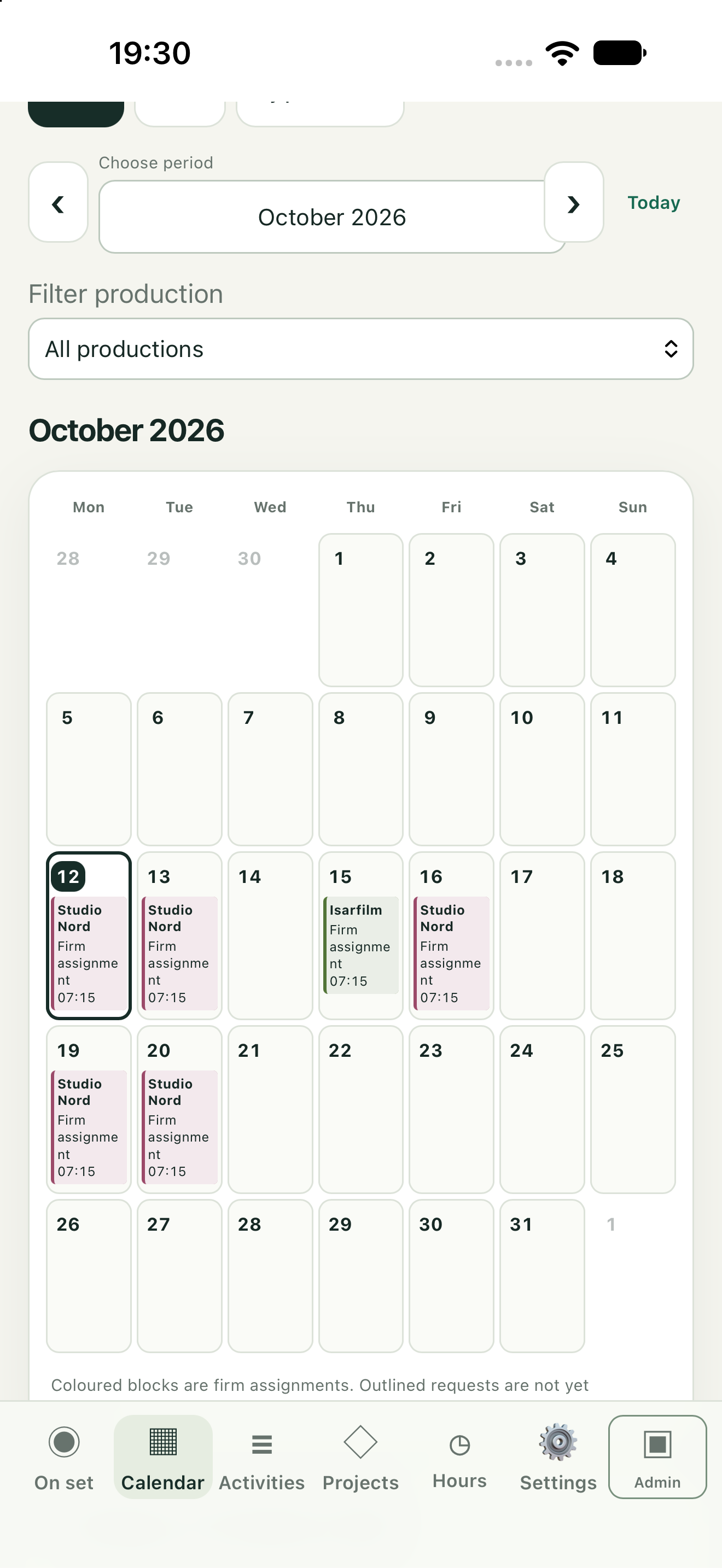
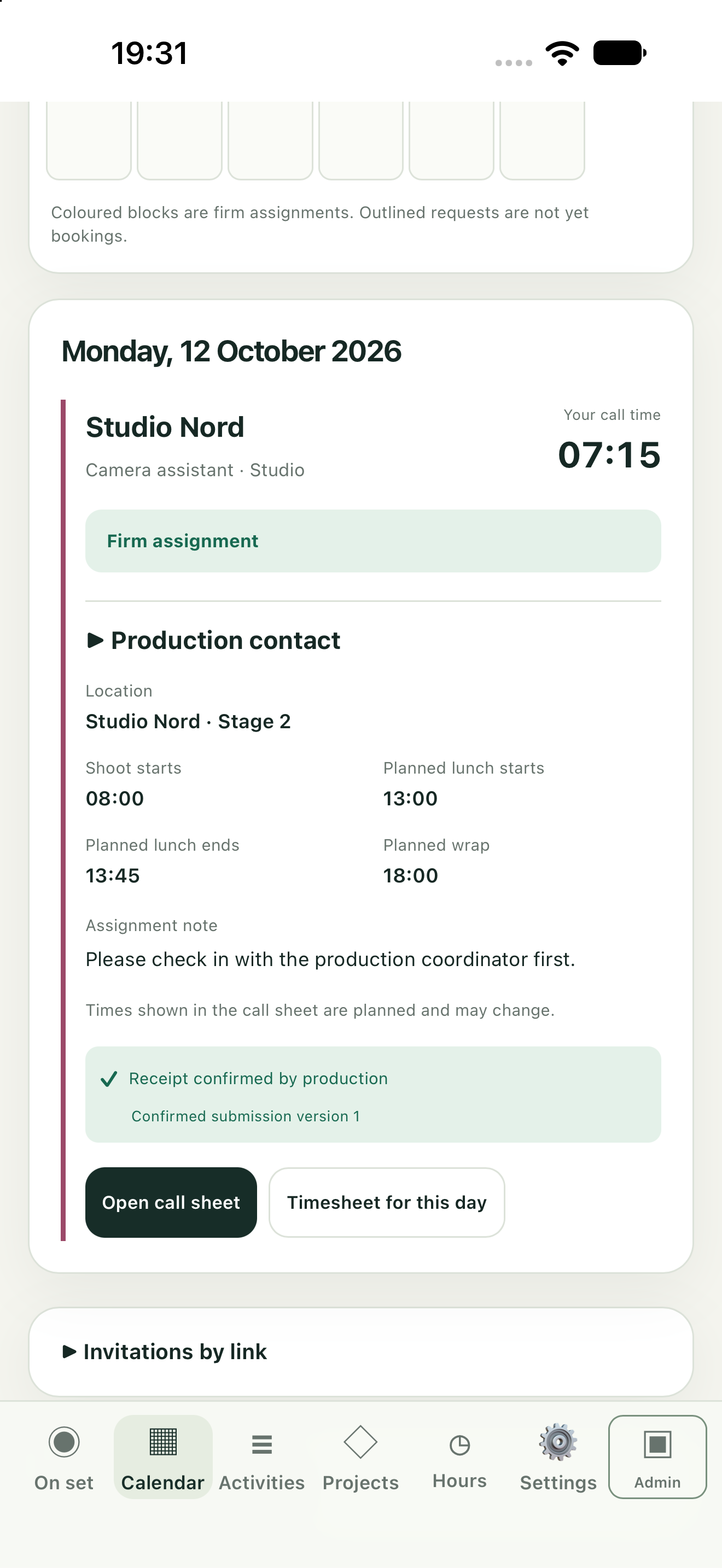
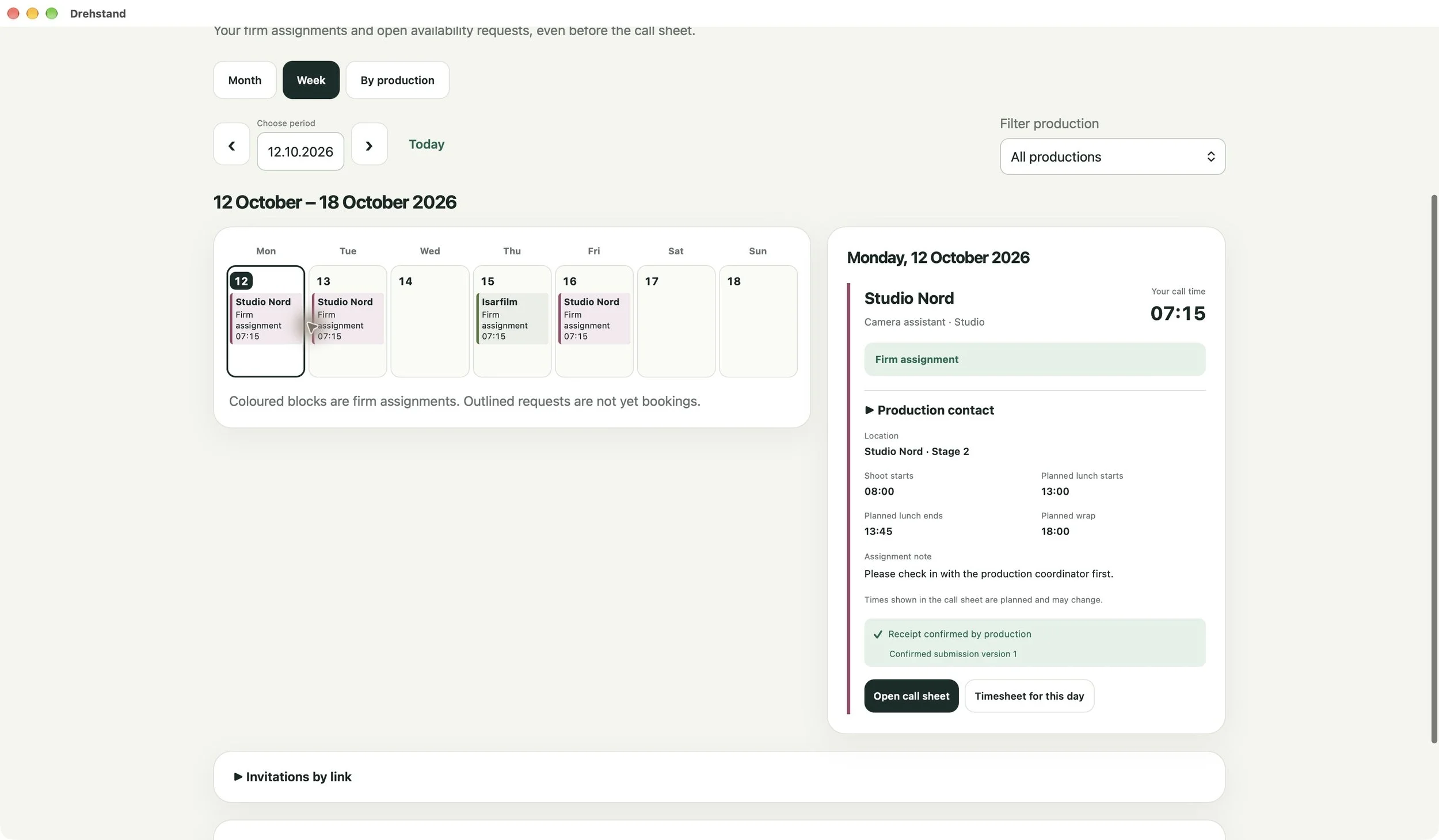
Select a screenshot to open the full-size original.
02Call sheets & shoot progress
Track the shoot. See where you stand.
Keep the shoot in view together: crew read the call sheet and follow progress; authorised admins control the shoot and enter actual end times.
Select a scene. Record its end.
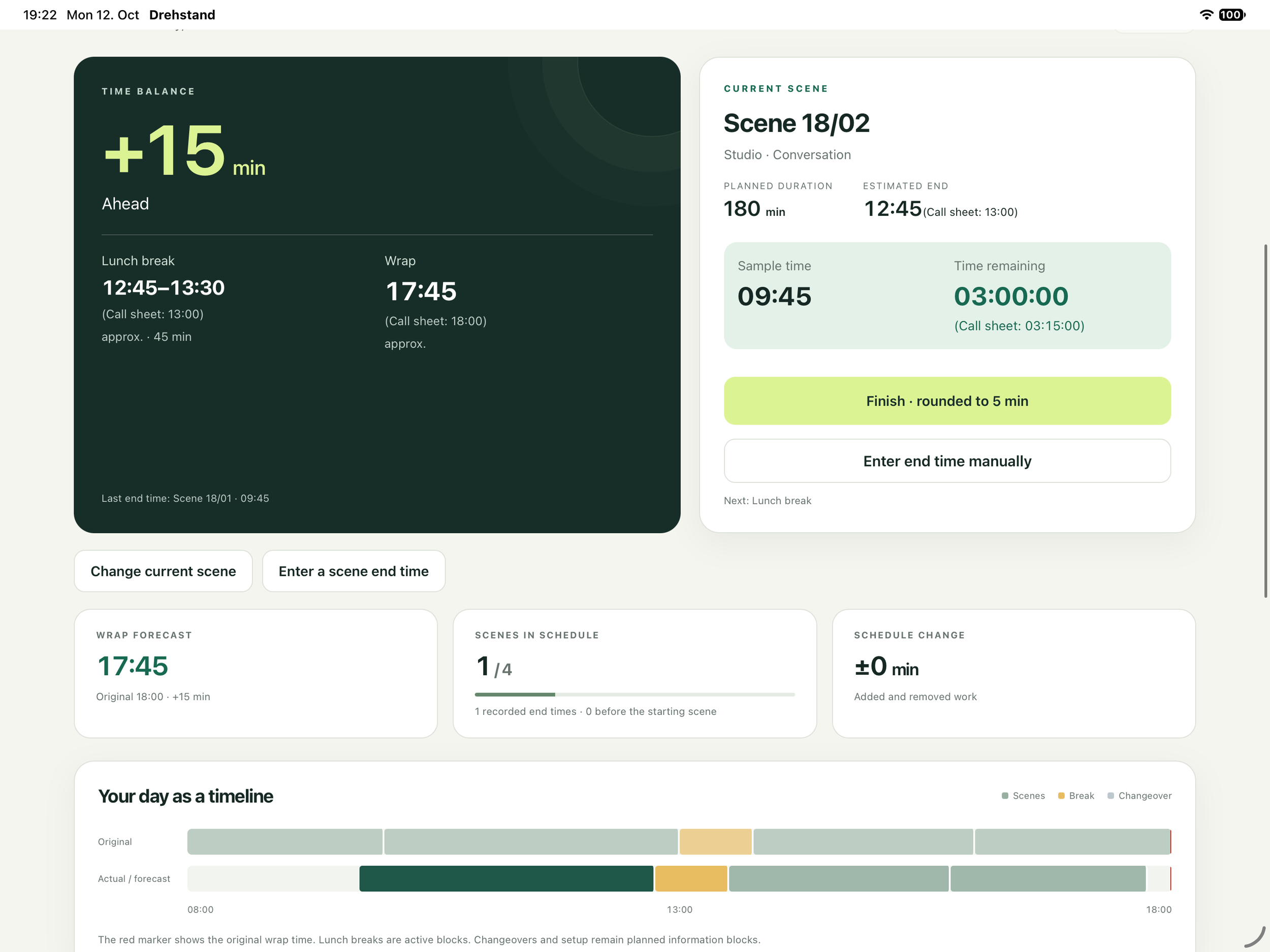
Authorised admins start the day with the current scene and record its actual end. Each recorded end time updates the lead or delay against the plan. The first end time establishes the schedule status.
Crew follow the shared status with read access. Their view updates after a successful cloud sync.
All features & notes
Import a call sheet as a PDF, check the recognised details and apply it to the shoot day. Scenes, times and breaks are brought together in the app.
- Check the import and correct details where needed.
- See scenes, locations, times and breaks in the daily plan.
- Manage several shoot days and units within a production.
- Share the daily plan with invited crew members.
PDF layouts vary widely. Check the import before using the daily plan.
Import. Check. Apply.
Shoot progress in detail
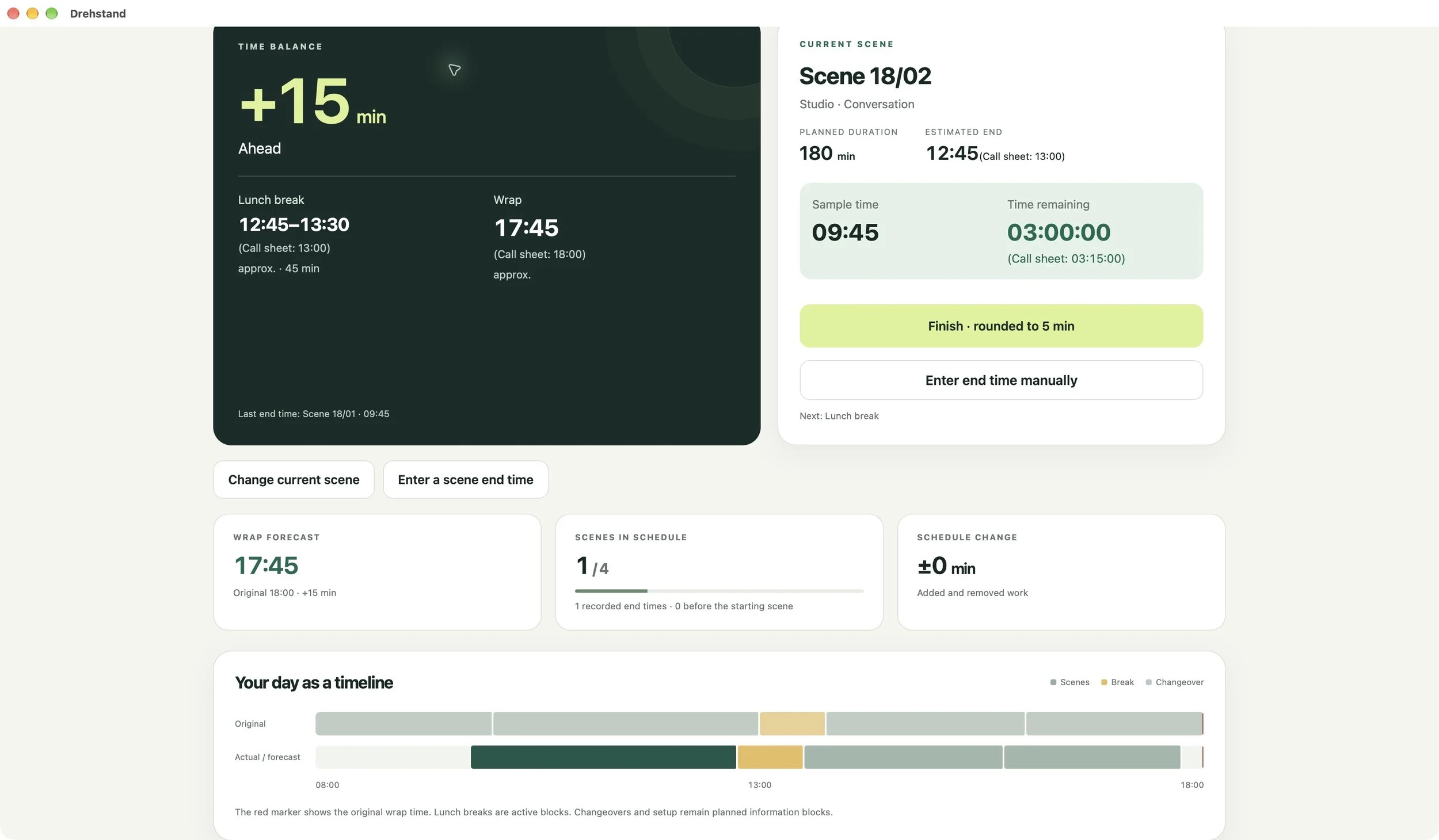
Select the current scene, record its actual end and compare progress with the plan. You can see the lead or delay and estimates for lunch and wrap. Manual end times and joining a day already in progress support work on set.
The original plan and current progress share one timeline. Add, edit, move or remove scenes from the running order. Two suitable scenes can be linked as “Two in One”. Breaks are separate blocks; setups and moves retain their planned durations.
For production, an overview shows all accessible units for the selected day, each with its own status and estimate. Changes update after a successful cloud sync; an outdated view remains labelled.
Estimates are based on the stored plan and recorded end times. Planned and actual times remain distinguishable.
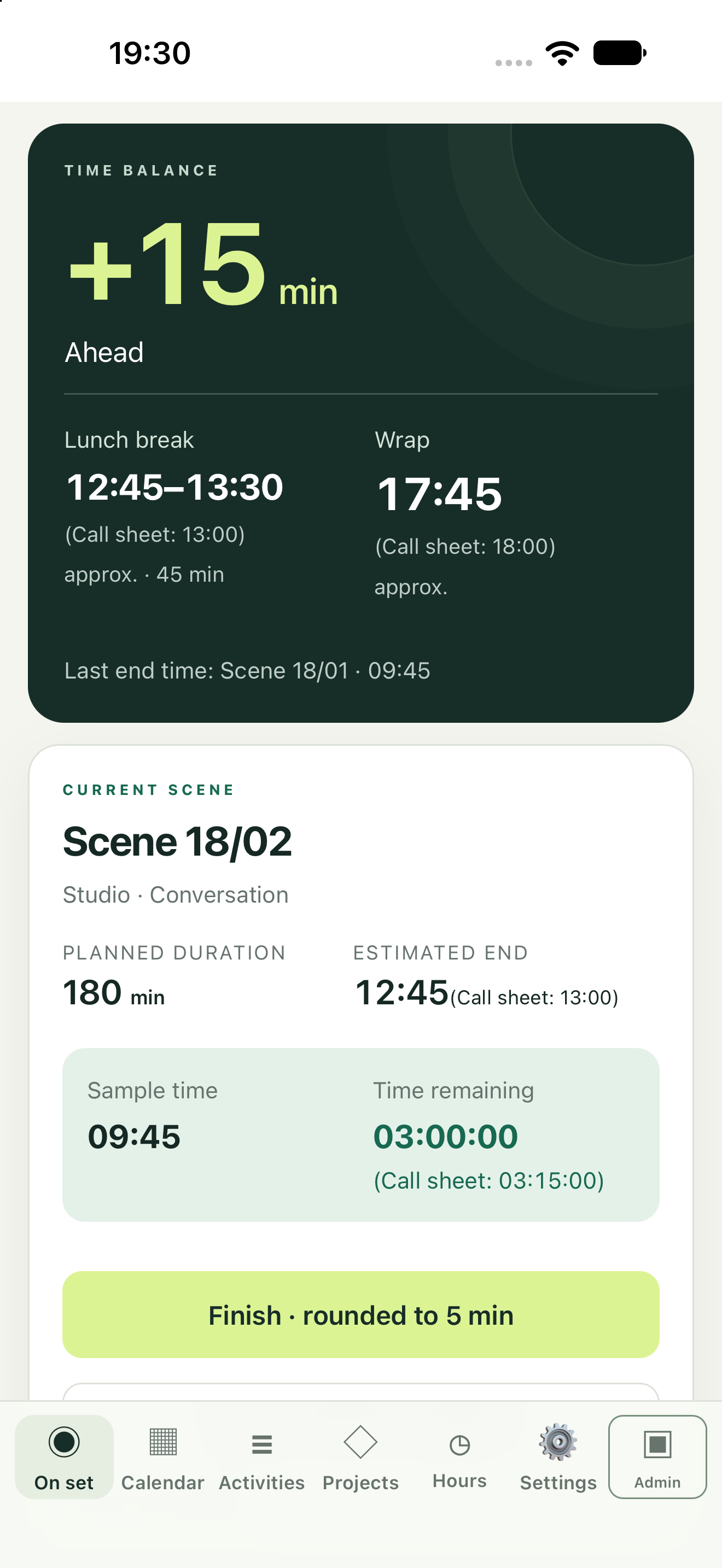
Select a screenshot to open the full-size original.
Team & conversations
Stay in touch.
Invitations connect the production team. Owners manage members and rights; authorised admins edit call sheets and crew assignments. Members with read access follow the shared progress.
Chats, profiles & protection
Profiles show name, role, production and an optional phone number. Production chat supports team conversations; personal chats are shared only between the two people involved. Personal and department scene notes keep relevant details with the scene.
Local blocking, a limited text filter and a report template help with problematic messages. You review and send reports yourself; there is no automatically monitored moderation inbox.
03Timesheets
Timesheets. Your hours in view.
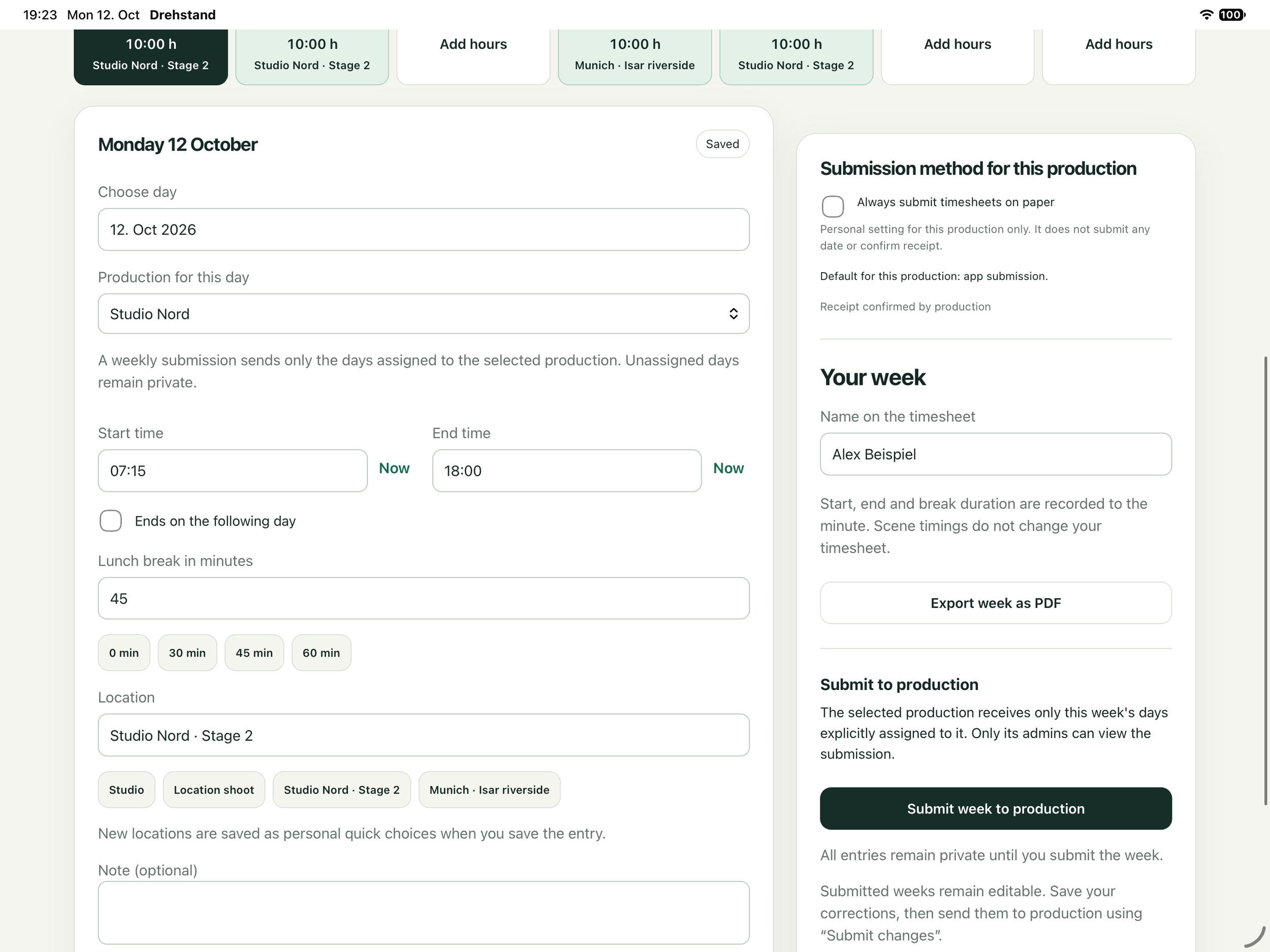
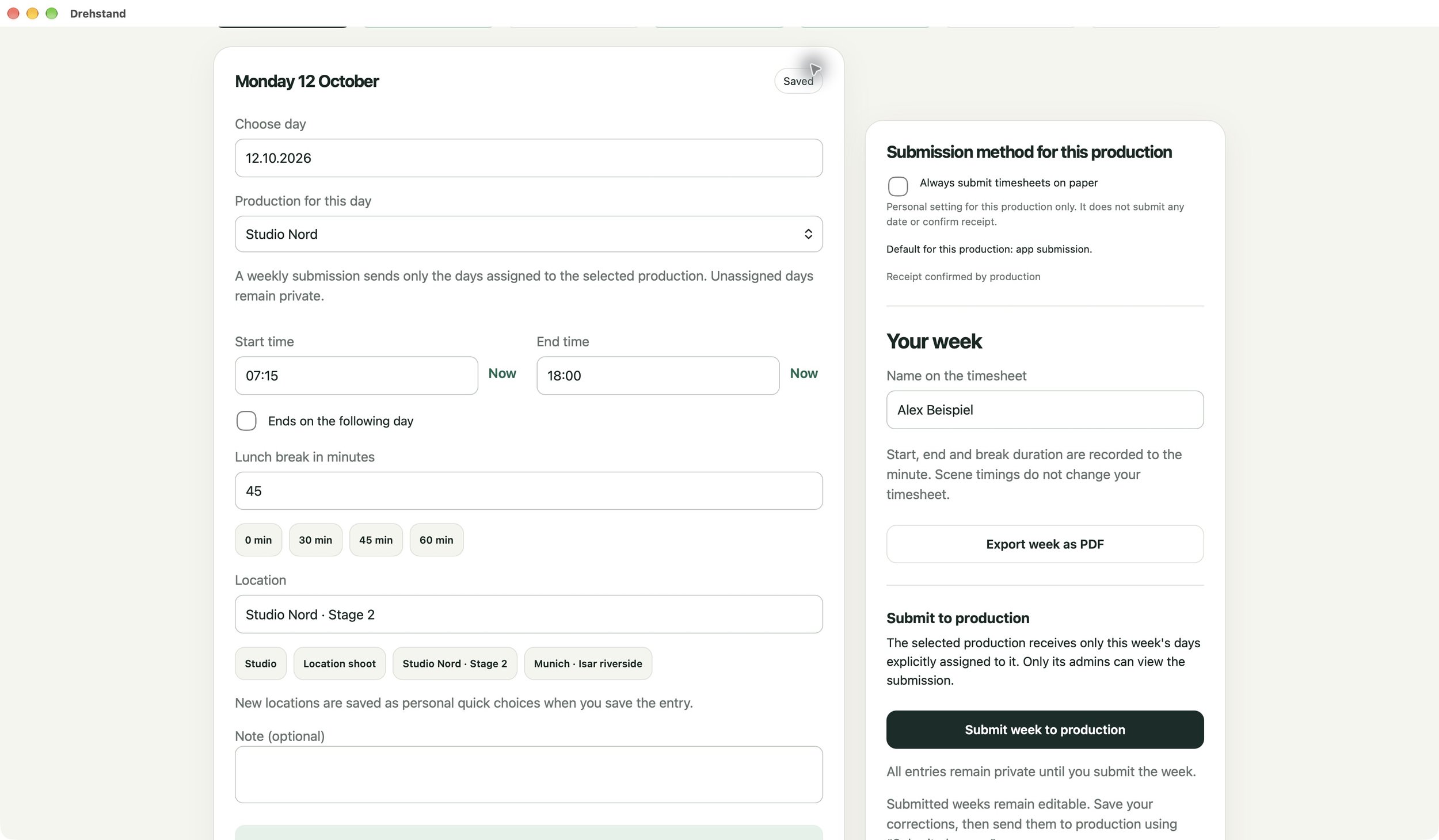
Record the start and end of work, breaks, location and optional notes in your personal timesheet. Assign every day to a production, check the week and export it as a PDF.
All features & notes
- Go straight from a calendar assignment to its timesheet.
- Check and record your actual hours. A planned assignment does not create hours worked.
- Explicitly share one week for one production with authorised production admins. Days from other productions are excluded.
- See submission and receipt status in your assignment. Production can confirm a version that has actually been submitted.
- Delete personal days or separately withdraw a weekly submission.
Currently there is one personal timesheet entry per date, assigned to one production. The calendar can show several assignments on the same day, but the timesheet cannot yet record them as separate work records.
For your personal timesheet PDF, choose all days of the week or only one production. With a separate choice, you can add a weekly fee for a selected production on an extra page. Without that choice, the file contains no fee; a CloudKit weekly submission never contains private fees.
Your optional weekly fees under “Activities” are a separate private area and are not included in ordinary timesheet submission.
How do I submit a timesheet on paper?
Choose “On paper” as the submission method for the production. This private preference does not submit anything. When you have actually handed in the physical timesheet, mark “Timesheet submitted on paper” on the firm assignment. Production confirms receipt separately. You can change the method back to digital for each production.
Select a screenshot to open the full-size original.
04Production management
Request crew. Plan assignments.
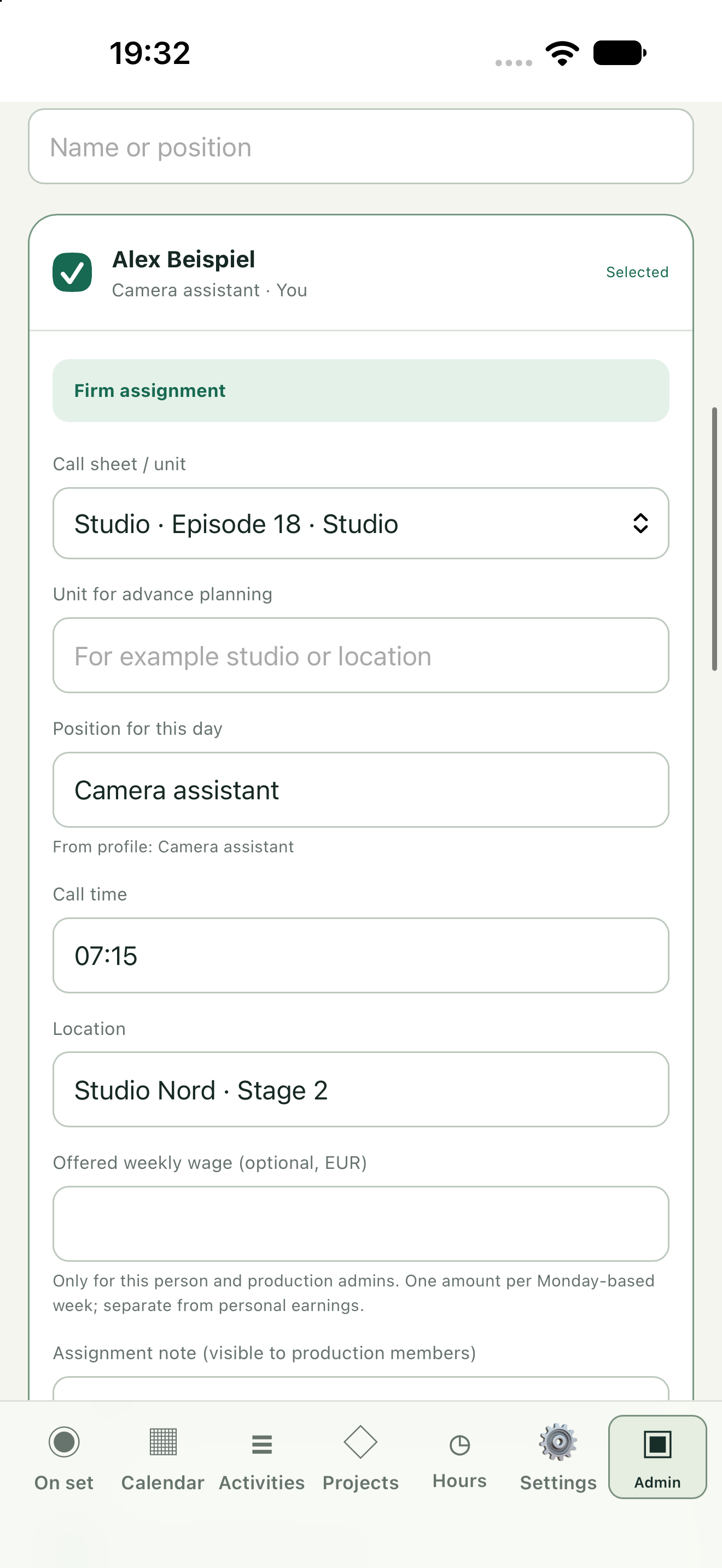
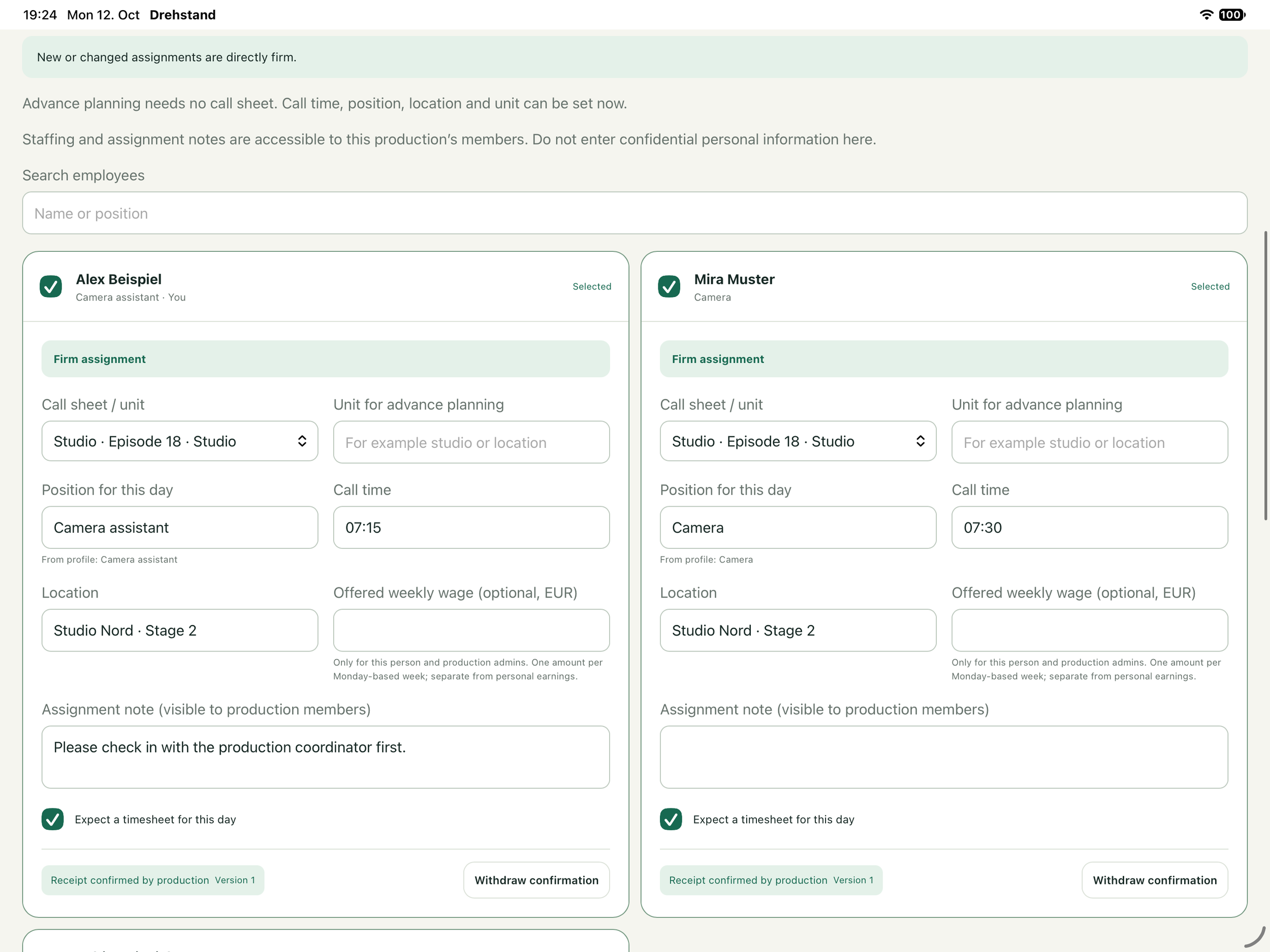
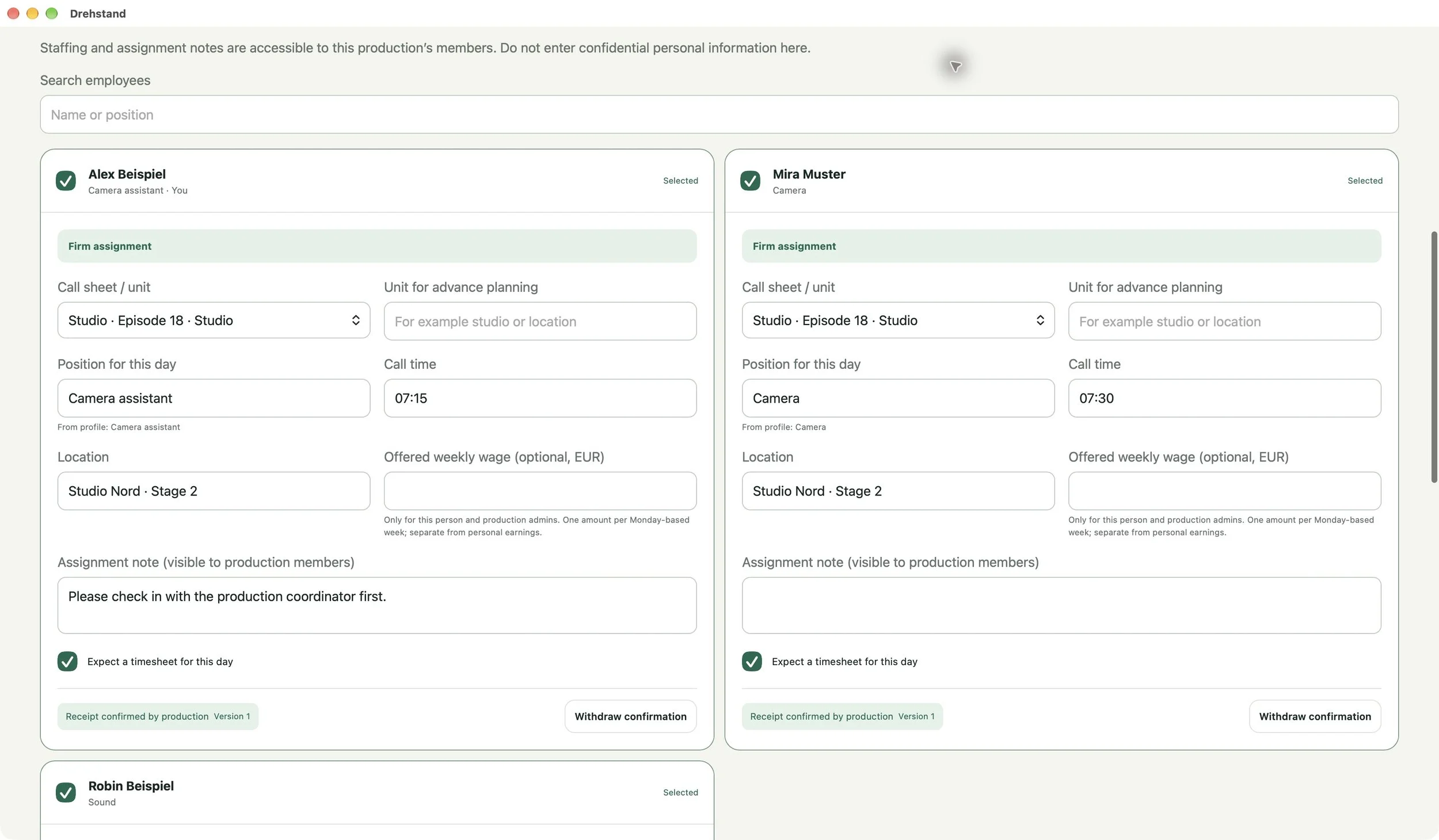
Request crew, review acceptances and confirm assignments. Or schedule your regular team directly, weeks and months ahead, even without a call sheet. With admin rights you manage crew, call times and locations, provide call sheets and confirm received timesheets.
All features & notes
Only authorised production admins see management tools for imports, crew, settings and receipt confirmations. Once the production invitation is accepted, crew can be assigned for individual days or periods of up to a year, without a call sheet. The role is suggested from the profile; unit, location, call time and notes are added. A later call sheet is linked separately.
- Choose for each production: requests with acceptance or decline, or direct assignments for regular teams.
- Request several people; production awards the assignment explicitly. Acceptance alone is not a firm booking.
- Optionally add an offered weekly fee. It is separate from private personal fees and shared only with the person concerned and confirmed admins.
- Copy the previous day's crew as a draft, review it and add or remove people.
- Set timesheet requirements per person. Distinguish digital submissions from actual paper submissions; admins confirm receipt separately.
- Set a reminder deadline from 1 to 30 days, or disable it.
Crew assignments and assignment notes are visible to production members. Personal chats stay between the two people involved. New requests, decisions and reminders appear after a successful cloud sync. Notification permission is required; immediate push delivery is not guaranteed.
Select a screenshot to open the full-size original.
05Work overview & weekly fees
Your work overview. Every production.
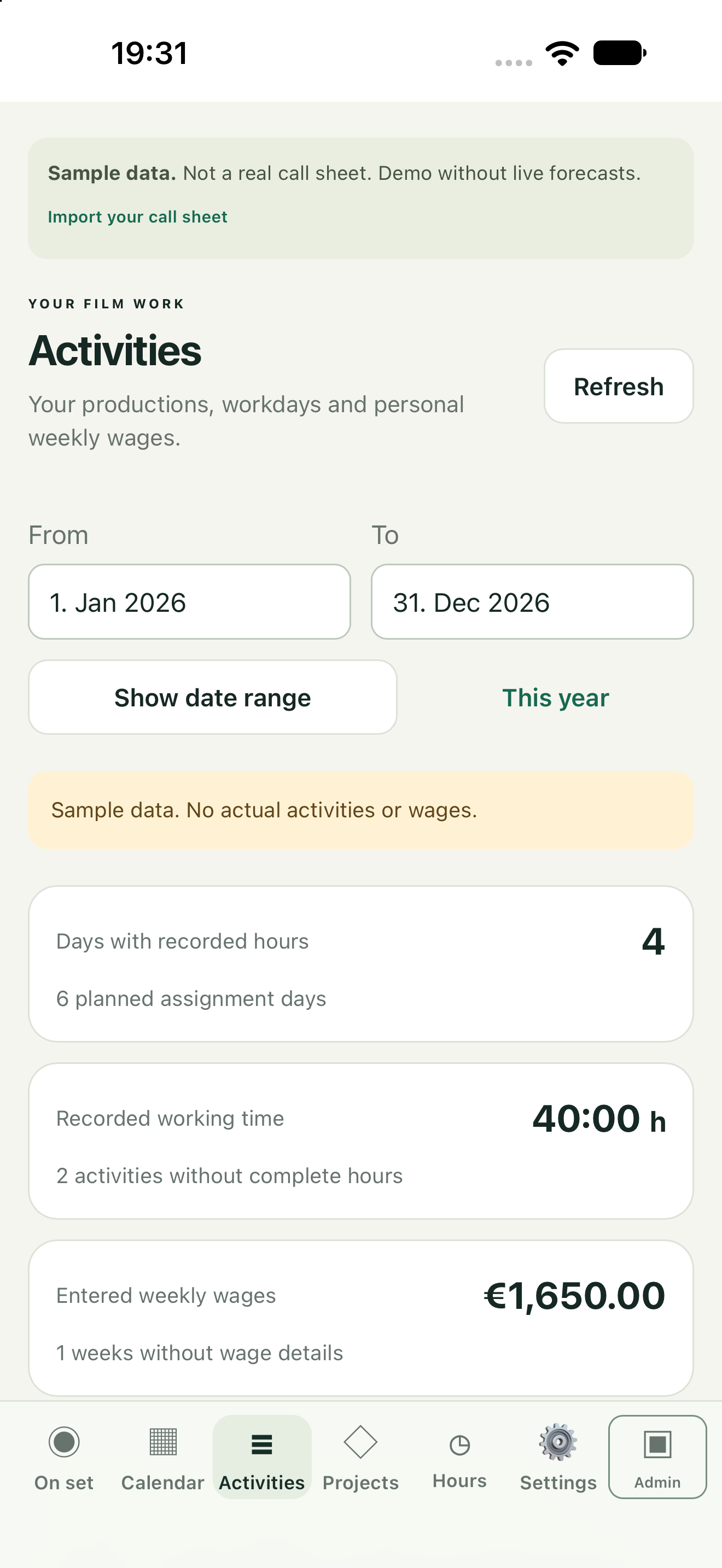
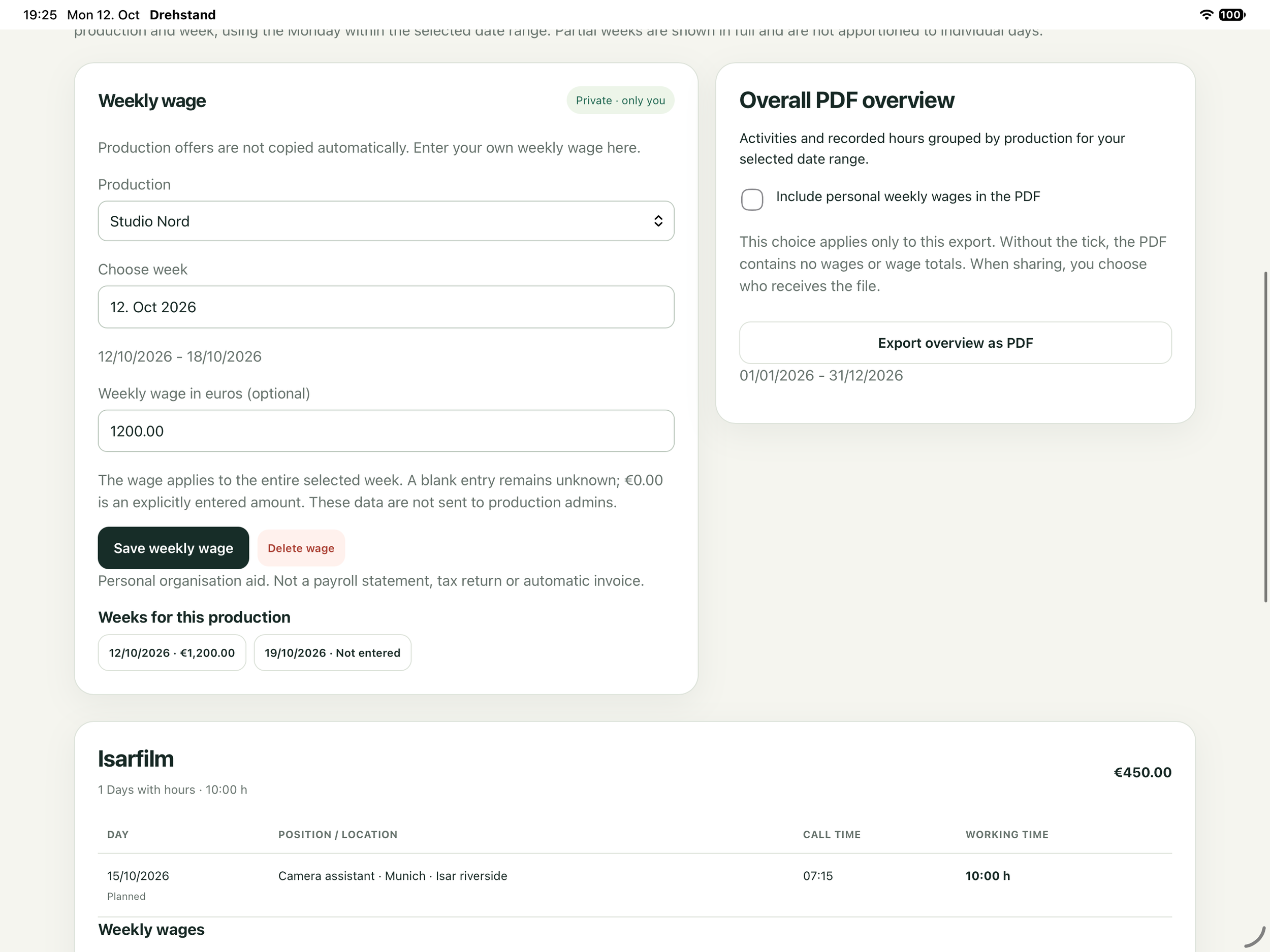
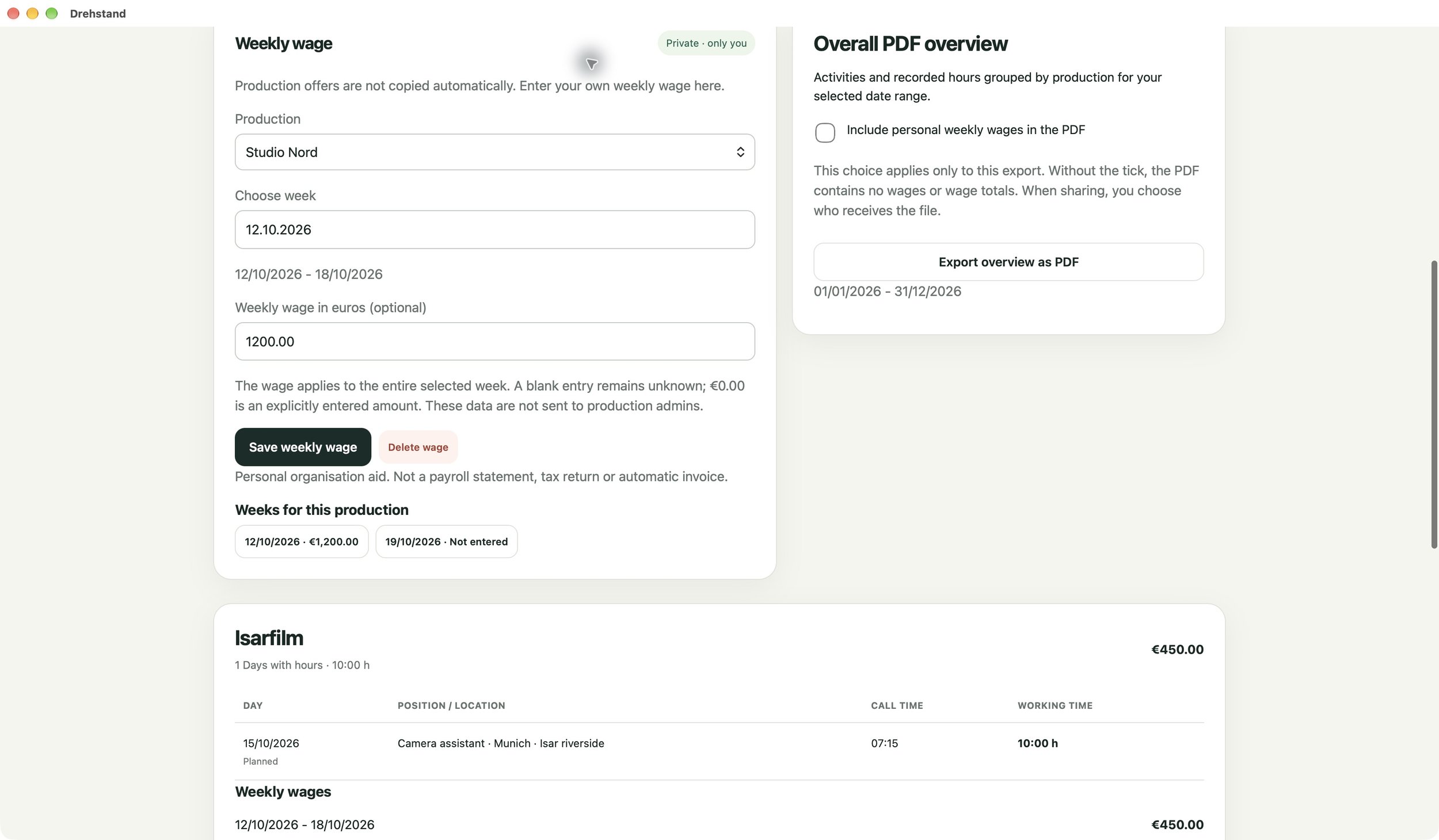
A day, a week or the whole year: under Activities, bring together assignments and recorded working hours across all your productions. Add private weekly fees if you choose. Export the overview as a PDF; fees are included only with your additional selection.
All features & notes
“Activities” groups assignments and your personally recorded working hours by production. Choose a date range or the whole year. Planned days and hours actually recorded remain separate.
- See days, roles, locations, call times and recorded hours for each production.
- Optionally enter a weekly fee in euros for each production and calendar week, privately in your iCloud area.
- Export a total overview as a PDF, grouped by production with hours totals.
- Include fees and fee totals only with your additional selection.
Weekly fees are not sent automatically to production or with ordinary timesheet submission. A weekly fee is counted once if its Monday falls within the selected date range; boundary weeks are shown at their full weekly amount. There is no automatic allocation to individual days. Missing amounts remain unknown rather than appearing as zero euros.
The overview helps you organise and prepare your records. It is not a payroll statement, tax return, automatic invoice or confirmation of payment received.
Select a screenshot to open the full-size original.
Keep call sheets current
A new version. The same shoot day.
Plans can change. With “Upload new version”, authorised admins provide an updated daily call sheet. The current PDF is clearly marked; previous PDFs remain available under “Previous version(s)”. A notice draws attention to the update.
A new call sheet can change the remaining running order even after the shoot has started. Recorded actual times remain distinguishable from new planned times. The new version is checked before it is applied.
The week ahead.
A weekly call sheet gives your crew a guideline for a whole calendar week, Monday to Sunday. It stays a separate PDF: it creates no individual shoot days and copies no daily times. Daily call sheets are still uploaded separately.
Know who is asking.
In the production profile, authorised admins maintain the name and optional website, phone number, contact person and contact email. Crew see the current production contacts with their assignment and request.
These additions are being prepared for the next app version. An updated App Store version will become available only after Apple's approval.
In the next update
Your contacts. The right recipients.
Maintain your crew profile in Settings. Choose phone and email visibility separately: production admins only or all members of your productions. Authorised admins maintain the production profile with contacts, an emergency number and further information.
Prepare call sheets by email.
Choose crew for a shoot day, check the Bcc recipients and add a cover message and sign-off. The draft includes the current PDFs of every unit for that day and production contacts. You review and send it yourself.
Without a supported mail composer, especially on Mac, export the complete EML for a configured compatible mail client. Nothing is automatically sent and delivery is not promised.
Useful every day
The details matter too.
Save your records: reopen an imported original PDF, save the day as JSON or export a CSV log. Undo steps help with corrections; shared changes are checked for version conflicts.
Views, notes & managing data
For iPhone, iPad and Mac, with adjustable views and Mac keyboard shortcuts. The Mac version is coming soon. Your personal calendar and authorised production management also work at your desk.
Choose your view: German or English, light or dark mode and optional notifications. A local demo shows the features with sample data without creating a production share.
Keep notes in context: personal scene notes stay private; department notes are shared with the authorised team. Assignment notes are part of visible production planning.
Manage your data: remove your profile details, your message text and your personal entries using separate actions. Withdraw a submitted week separately. Previously exported copies remain with their recipients.
For iPhone, iPad and Mac.
Free on the App Store for iPhone and iPad. Mac is coming soon.
Your production. Your sharing.
The app uses iCloud for shared production data and sync between participating devices. iCloud and invitations require a signed-in iCloud account and an internet connection.
Revoking access & exported copies
The effect of revoking access and deleting data also depends on who owns the cloud data and whether the required sync succeeds. Later access revocation does not recall previously exported copies.
Ready for the next shoot.
Free for iPhone and iPad. Mac is coming soon. Available in the German App Store.
Write to us.
Questions about the app or a problem to report? The support page covers call sheets, iCloud, teams and timesheets. For further questions, contact Julian Aschenbrenner by email.